Feishu (Lark) integration
Feishu (Lark) setup and usage
Use a mobile conversation to start genRTL tasks, review progress and approve operations. Messages and tool activity also appear in your desktop project. Follow these steps in order.
Before you start
Prepare a genRTL desktop client with Feishu support, an active local project conversation and a Feishu account that can create an enterprise custom app. Include your phone account in the app availability range.
These screenshots use the China Feishu platform. Lark is the international product name; the current genRTL connector targets Feishu China and does not yet offer international Lark domain selection. Their credentials are not interchangeable.
Your computer runs the tasks: keep it awake, online and running genRTL. Use one app credential pair on one active desktop. No public callback server or tunnel is needed.
1. Create an enterprise custom app
Open the Feishu developer console and choose Create enterprise custom app. Set a name such as genRTL agents, a description and an icon. You will search for this name on your phone.
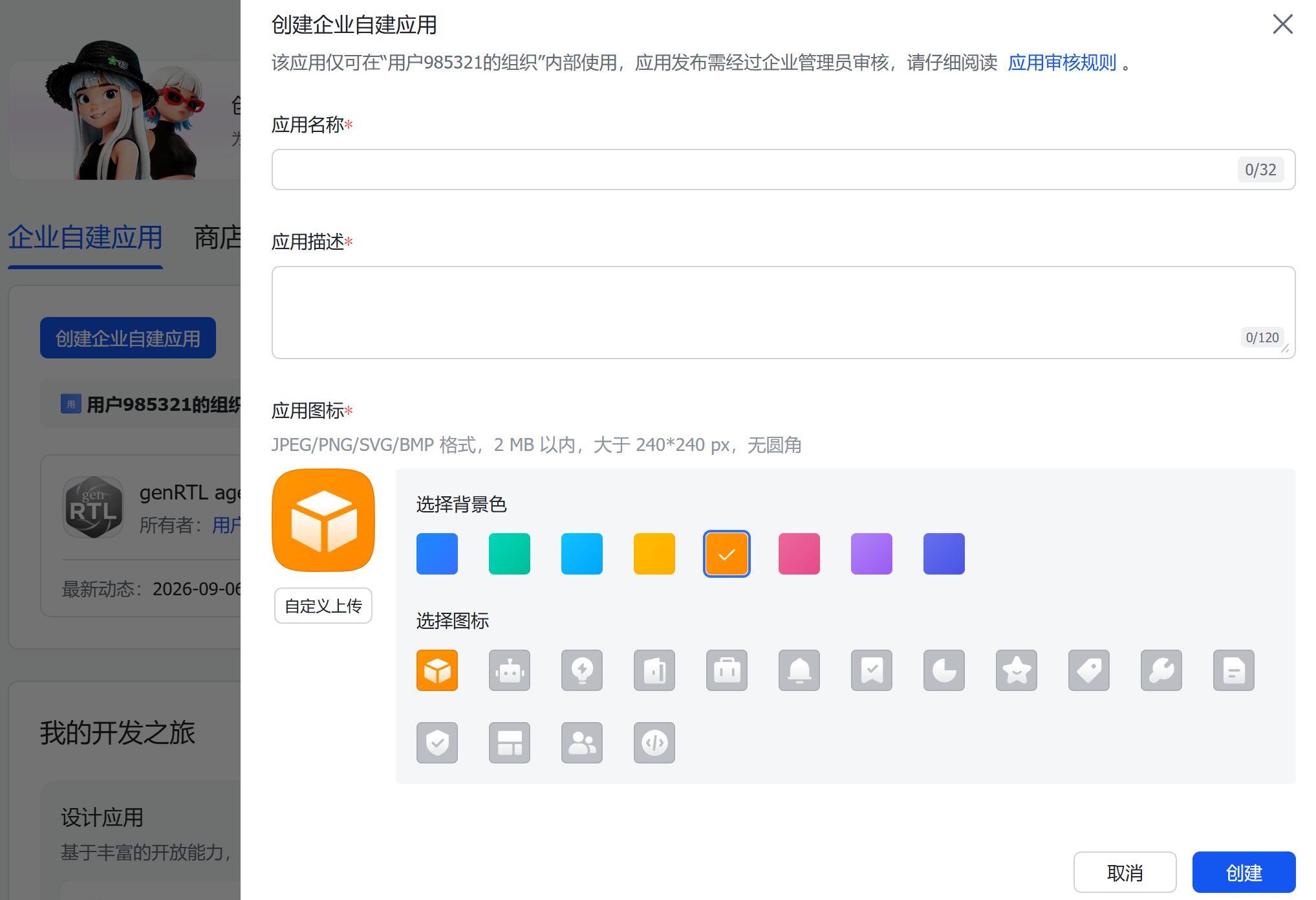
2. Add the bot capability
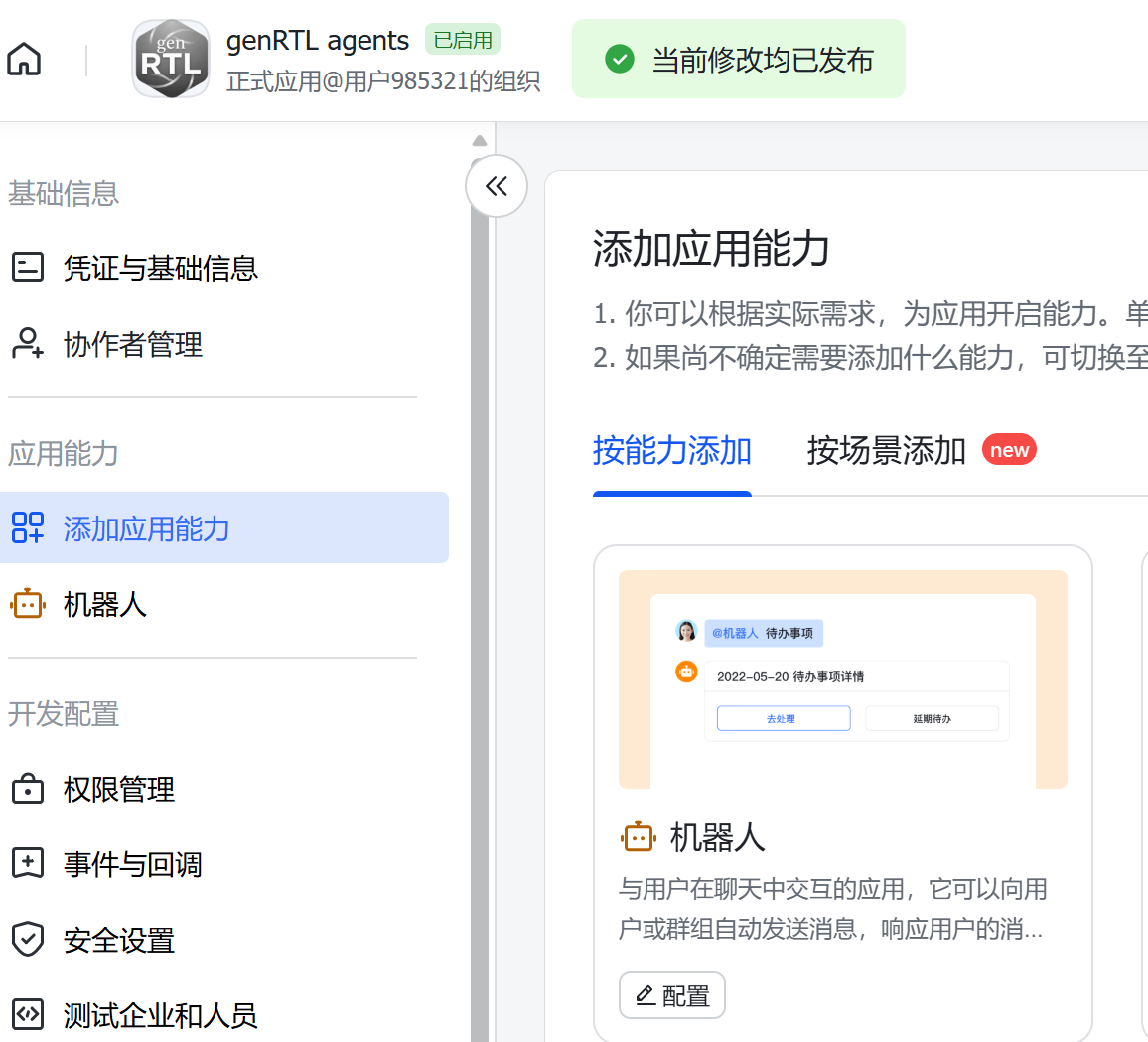
Under Add app capabilities, add Bot and ensure it is enabled. Creating the application alone does not enable messaging.
3. Enable messaging permissions
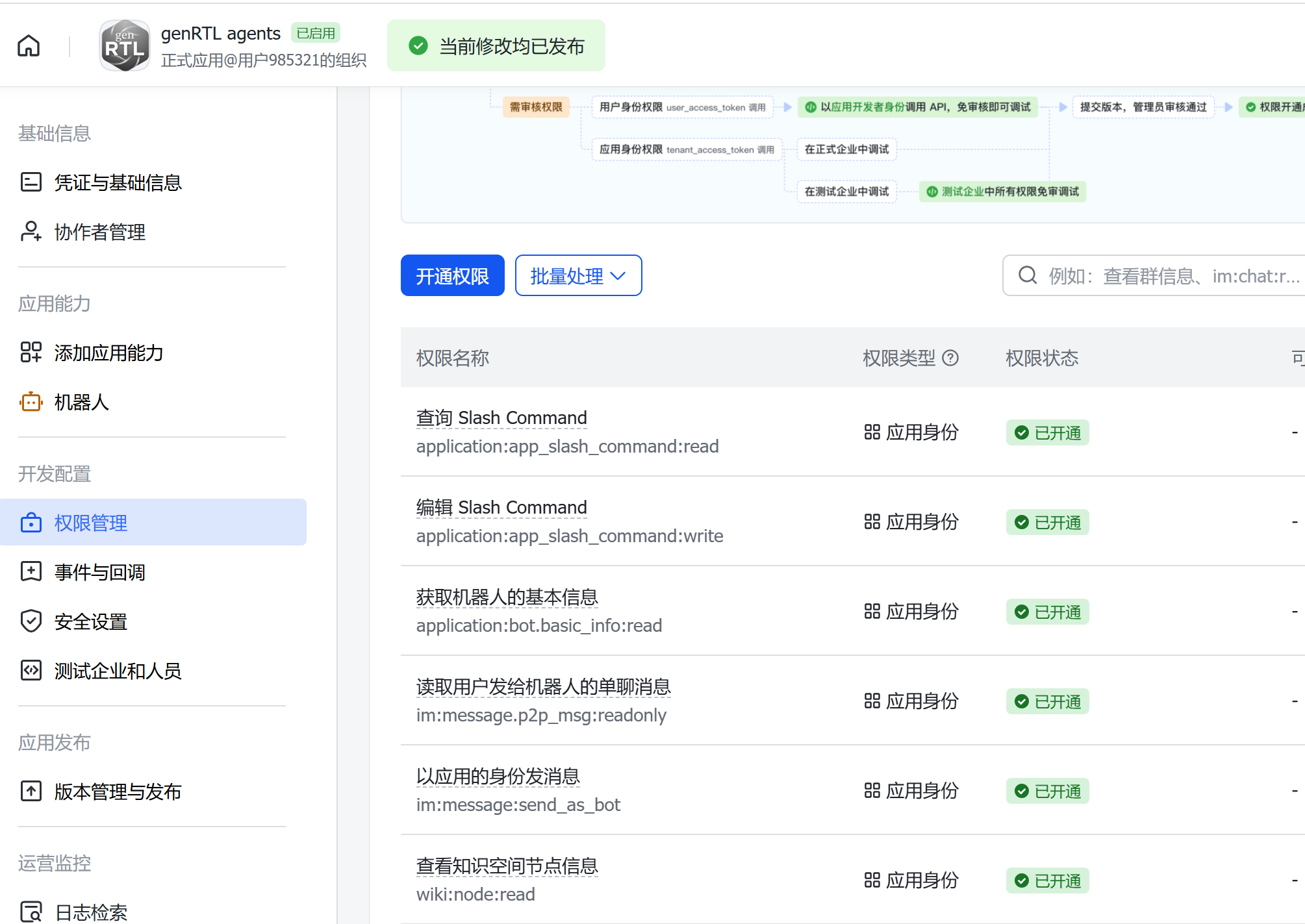
In Permissions, enable the following application identity permissions and any dependencies required by the console.
- im:message.p2p_msg:readonly — receive direct messages to the bot.
- im:message:send_as_bot — send replies as the bot.
- application:bot.basic_info:read — read bot information, as required by the console.
- im:message.group_at_msg:readonly — add only when using group mentions.
- The screenshot also shows optional Slash Command and wiki permissions. They are not required for this integration. Send /pair, /status and /stop as ordinary chat text.
4. Copy your app credentials
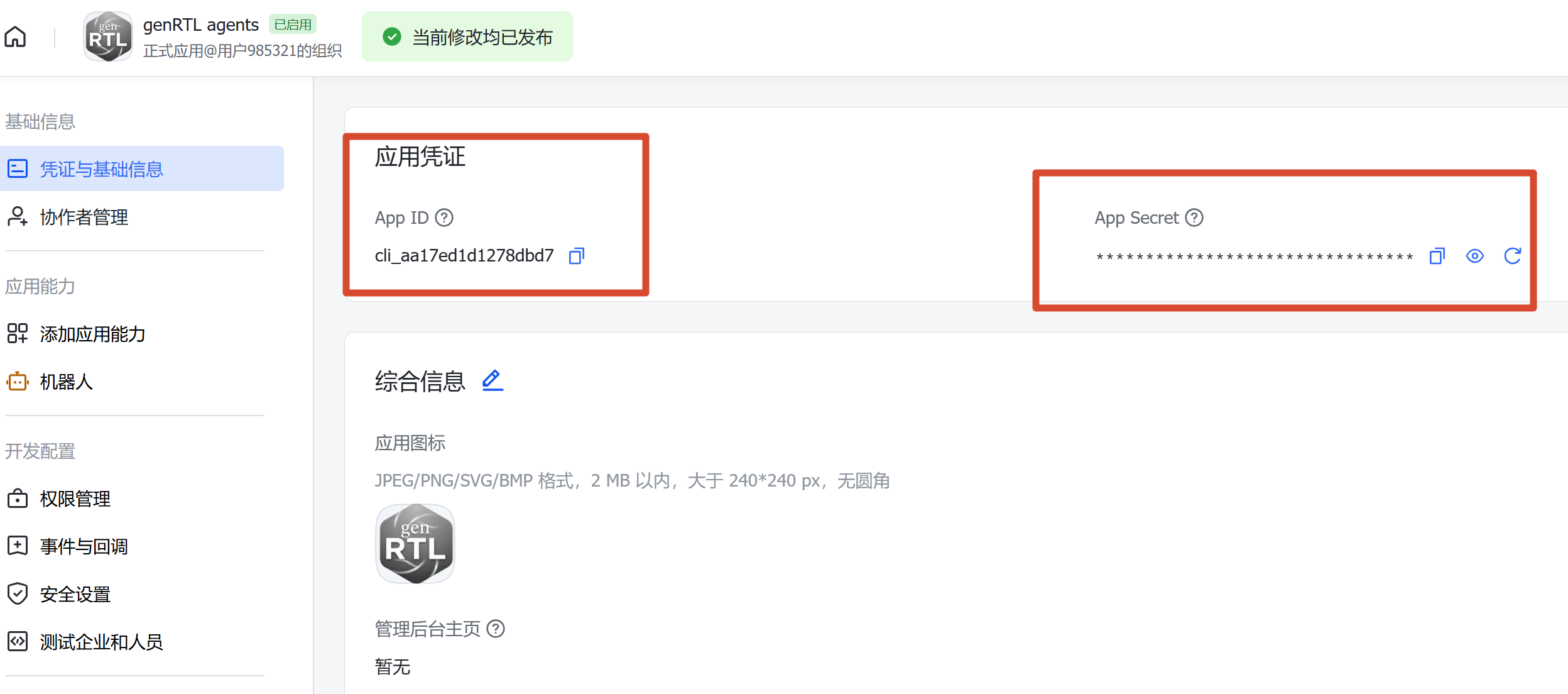
Open Credentials & Basic Information and copy App ID and App Secret. In desktop genRTL, open Settings → Feishu, enter them, enable the connection and save. Wait for connected and keep the desktop running for the next steps.
Enter the secret only in local settings. Once saved, leaving the Secret field empty preserves it. These credentials are not your Feishu account password.
5. Configure persistent connections
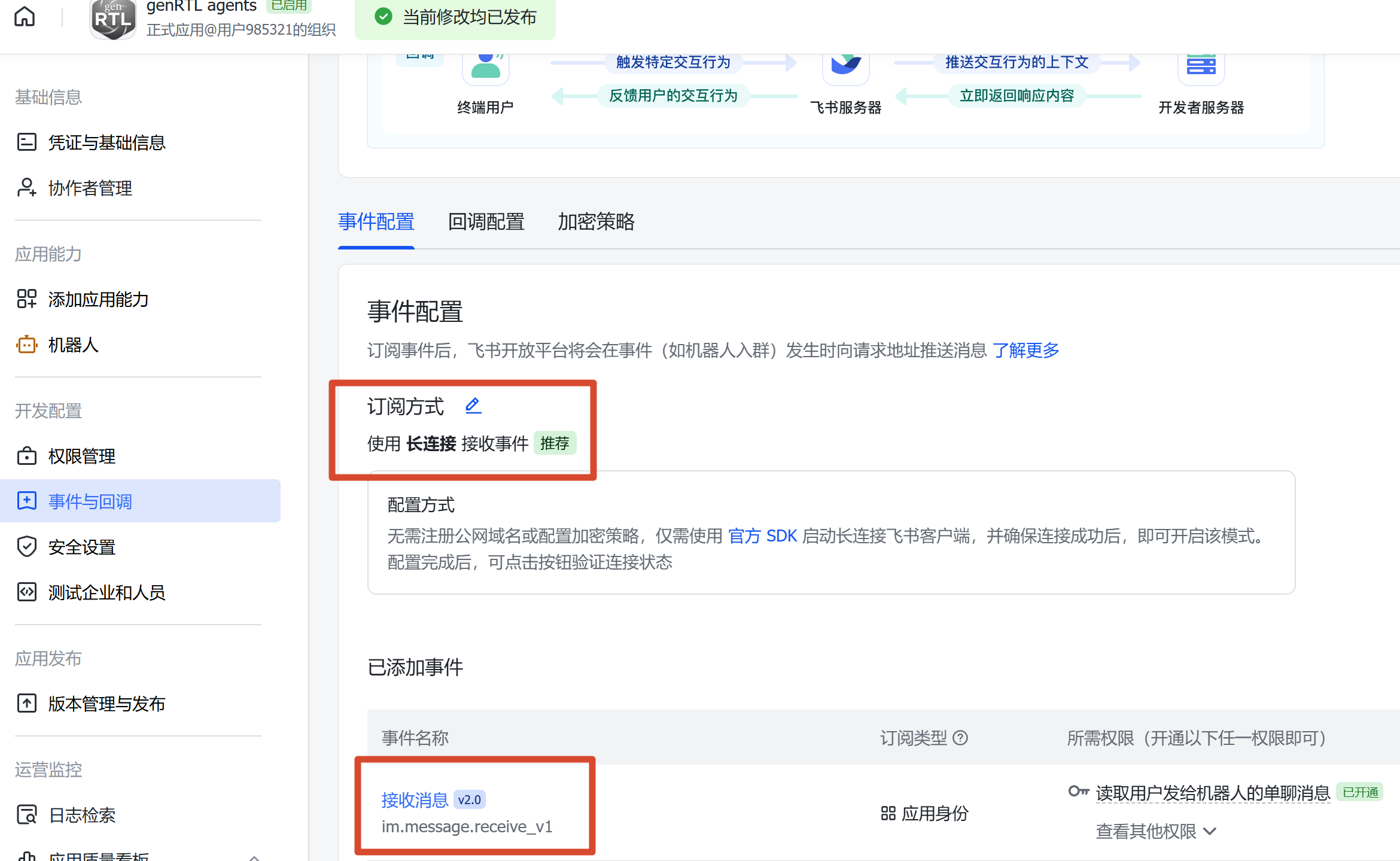
In Events & Callbacks → Event configuration, choose Receive events through a persistent connection. Keep genRTL connected while saving. Add Receive message v2.0: im.message.receive_v1.
For mobile approvals, also open Callback configuration, select persistent connection delivery and subscribe to card.action.trigger. Receiving messages alone does not enable approval buttons.
6. Publish and enable access
In Version Management & Release, create a version, include your phone account in the app availability range and complete any organization administrator review. Publish subsequent permission or event changes as required.
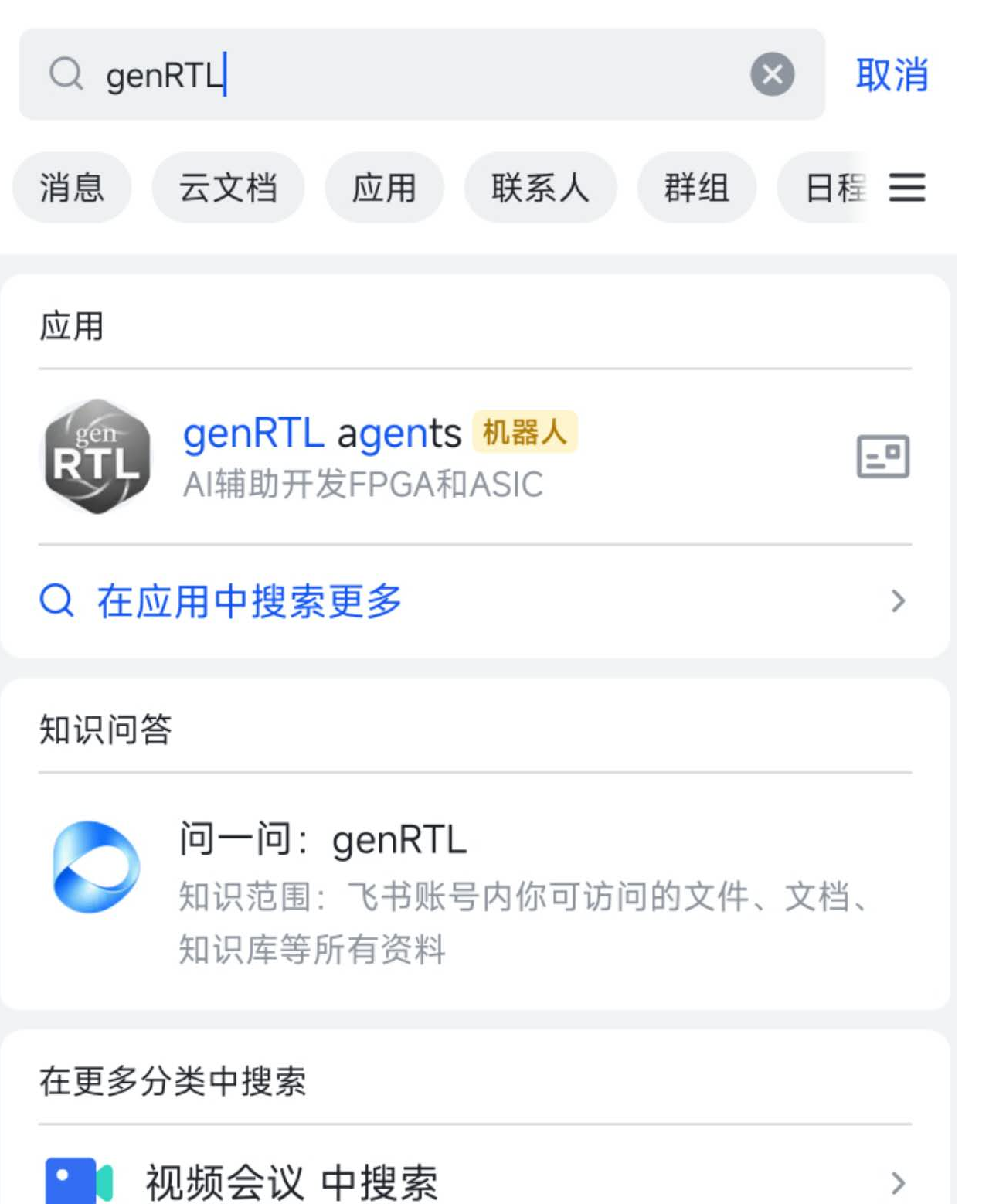
On your phone, select the same Feishu organization, search for the bot name and open a direct conversation. A searchable bot is not necessarily ready to receive messages.
In the search bar of the mobile Feishu app, enter “genRTL”, or your own application name if you chose a different one. In the Apps results, select “genRTL agents” with the yellow Bot badge. Open its direct conversation; if an app details page appears first, enter the chat from there. Then generate and send the pairing command in the next step.
7. Pair your phone with a project
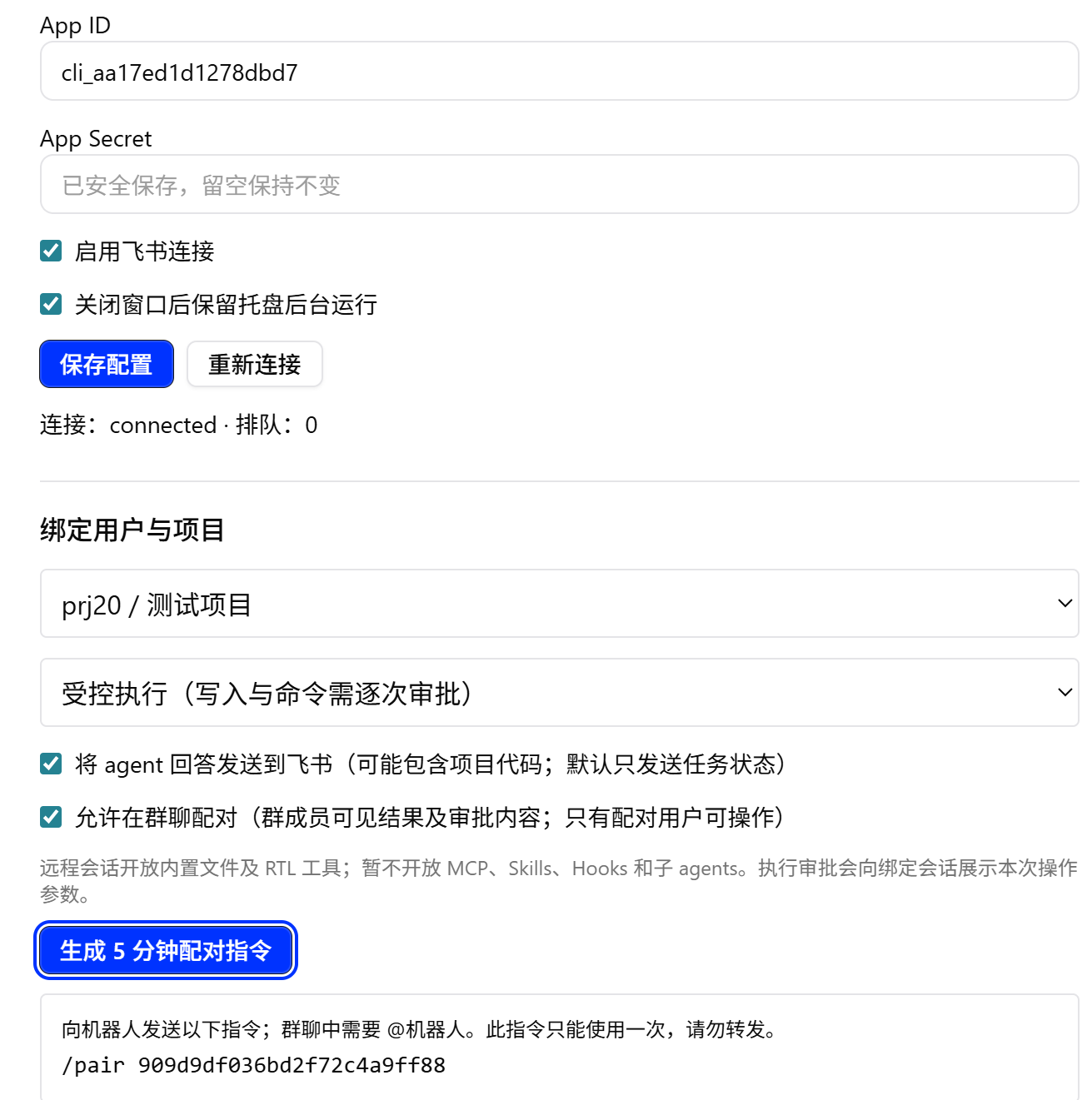
The screenshot below shows Feishu settings in genRTL Agents. In the upper area, enter your own App ID and App Secret, enable the connection and save. Confirm connected; use Reconnect to establish a new connection if needed. Enable the tray background option to receive tasks after closing the window, while keeping the computer awake and online.
In genRTL Settings → Feishu → user and project binding, select an existing, unarchived local conversation and choose a permission mode.
Generate the five-minute pairing command and send the exact /pair command from your phone to the bot. It expires after five minutes and can be used once. Wait for the pairing confirmation.
- Read-only mode supports inspection and questions. Choose controlled execution for file changes, commands or simulation, with approval for each operation.
- Only task status is sent by default. Enable sharing agent answers if you want replies on your phone; these may include project code.
- For groups, explicitly enable group pairing, add the bot and @mention it in pairing and task messages. Only the paired user can operate or approve, but group members can see results and approval contents.
- Pairing creates a dedicated Feishu sub-conversation under the selected project. The original desktop conversation history is not automatically shared.
8. Send tasks and follow desktop progress
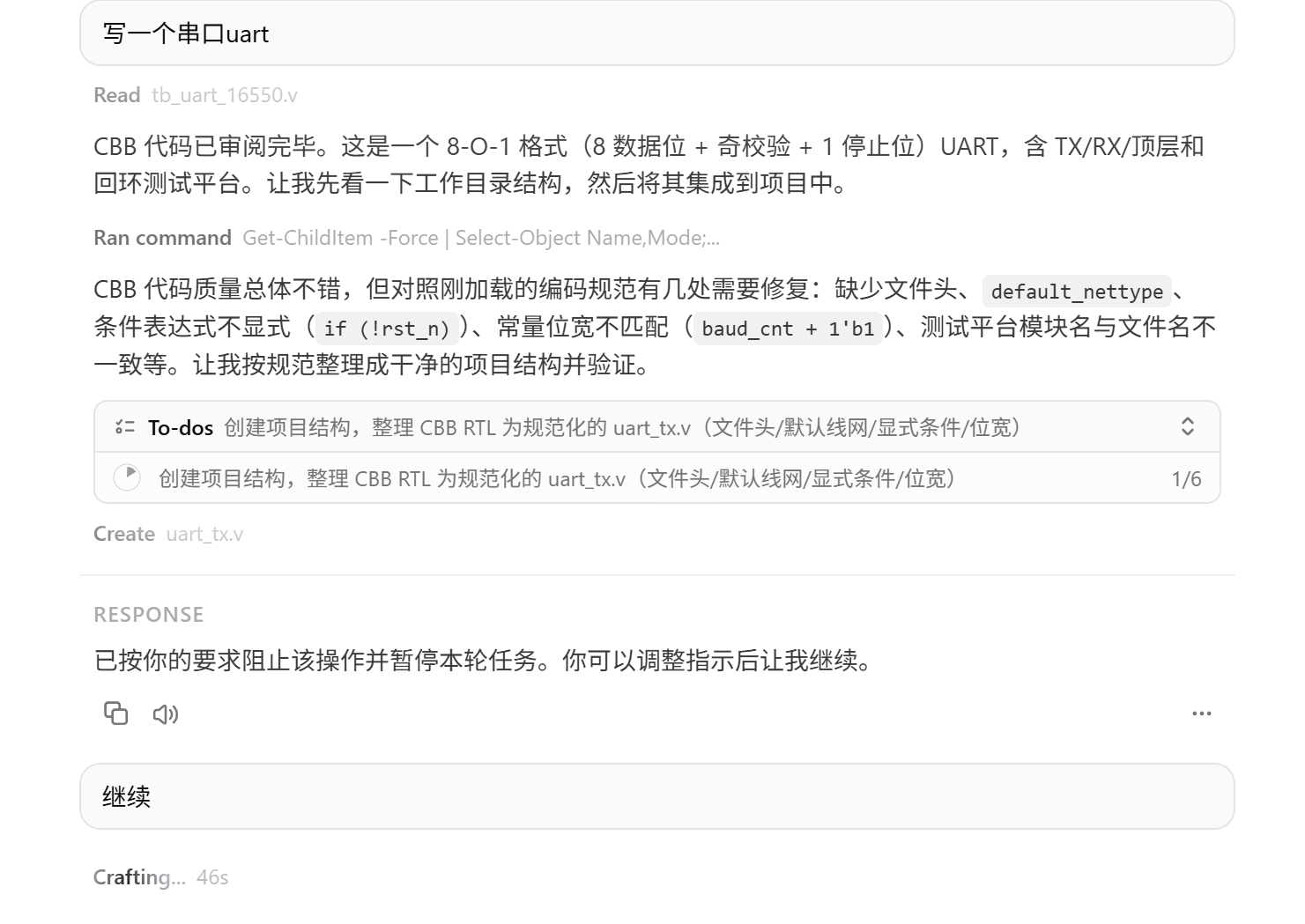
Send “hi” to check the connection, then a specific request such as “Inspect the UART project and list the files that need changes.” In controlled execution mode you can request code changes or verification.
Open the dedicated Feishu sub-conversation in the bound desktop project. Mobile messages, queued instructions, answers, tool calls, to-dos and task status use the same message components as local input. Your phone receives status and any answers you chose to share.
- Ordinary text starts a task. Follow-up instructions during a run are added at tool step boundaries.
- /status checks progress. /stop stops the current task and cancels queued instructions.
- Send “continue” as ordinary text to resume work. Resolve permission or approval issues first if they caused the pause.
- Review approval parameters and allow or deny within 120 seconds. Desktop approval also works; responding on either side invalidates the old approval.
Background operation and scope
Enable the tray background option to keep genRTL running when its window closes. Fully quitting, sleeping or shutting down the computer stops remote operation. Check connected and task status after returning.
Remote conversations currently support text, built-in file and RTL tools. MCP, Skills, Hooks, plugins, sub-agents and automatic mobile attachment input are not available. Full tool logs remain in the desktop conversation.
Revoke a binding in settings when finished; its pending tasks and approvals are cancelled.
Troubleshooting
- Connection error / 11205: verify the credentials belong to the same app and Bot is added and enabled. Check desktop networking or proxy settings, then reconnect.
- Cannot message this bot: verify bot capability, direct-message permissions, the receive event, the latest published version and your account availability range.
- Connected but no reply: verify event subscriptions, release status and successful pairing. In groups, @mention the bot.
- Bound conversation deleted or archived: select an active local conversation and pair again.
- Only status arrives: enable sharing agent answers in binding settings.
- Approval button fails: verify card.action.trigger delivery, the paired sender and that the card is neither expired nor already handled.
- No desktop messages: open the Feishu sub-conversation of the bound project. For model timeouts, inspect its error, check network and model service availability, then continue.